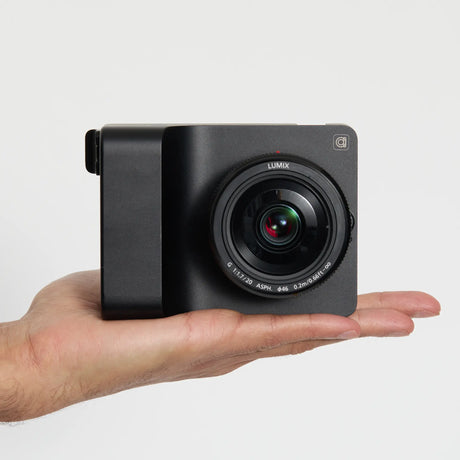
Caira Troubleshooting Guide
Need Help?

Caira Troubleshooting Guide

Find solutions to common issues and get back to capturing moments. Click on any topic below to explore detailed troubleshooting steps and helpful tips.

Camera Won't Turn On

Step 1: Check the battery level and ensure it's fully charged using a USB-C charger.

Step 2: Try a different power outlet or USB cable to rule out charging issues.

Step 3: If the battery is charged, hold the power button for 10 seconds to perform a hard reset.

Step 4: If the camera still won't turn on, contact our support team for further assistance.

The Camera Won't Turn Off

To power the camera off first ensure it is not plugged in via USB, then hold the power button down for 3 seconds until the light goes orange, then release the power button.

If this fails, the camera should also turn itself off after ~15 minutes of inactivity, assuming it is not plugged in over USB and the shutdown timer has not been disabled in the settings.

iPhone Won’t Connect to Camera Wi-Fi

Step-by-Step Guide

1. Check the Camera Power

  • Plug your camera into a USB charger.
  • LED should go yellow → blue and stay solid blue or slowly blinking blue.
  • If it behaves differently, note exactly what happens and email support.

2. Check Your Wi-Fi

  • On your iPhone, go to Settings → Wi-Fi.
  • Look for a network named alice_camera_XXXX or caira_XXXX.
  • If the network isn’t visible, contact support.

3. Verify the Camera Number

  • Ensure the number on the wi-fi  matches: The number on the bottom of your camera and The QR code used to pair the camera
  • If the numbers don’t match, contact support.

4. Send Video/Screen Recording

  • If all the above looks correct but it still won’t connect, send: Screen recording of your iPhone trying to connectVideo of the camera LED during the attempt
Media Saving & Gallery

What you might see:

  • Audio plays in the app, but exported videos may be silent.
  • Gallery may reset to the newest item after buffering.
  • App ignores manual "Resume" command for video downloads during photo buffering

Resolution: Unplug the camera from usb, do a reboot of the app.

Status:

  • Fixes for this are in progress, upcoming updates will improve media handling.
Camera Stability

What you might see:

1. Audio recording fails after interruptions (calls, alarms, Siri)

Resolution: Photo mode: Put phone on aeroplane mode
Video mode- Team currently working on a solution

2. Camera crashes and reboots during active usage

Resolution: Team are currently working on a fix for this. Update will be coming soon.

Focus & Exposure

We are continually improving the autofocus and stability of Caira.

Image Processing / AI Features

What you might see:

  • Some images may lose detail due to compression limits.

Resolution: Our engineer Oli is currently working on a resolution for this. Update coming soon.

  • AI editing features may produce unexpected visual changes in photos or videos.

Resolution: We are using third party models (Google Nano Banana) we are regularly keeping up to date with developments and improvements.

USB Drive & Storage

Unplug or Eject Your Camera from USB Before Capturing” Error

Resolution:
1.If the storage is full, delete some content , reboot and try capturing.

2. If you formatted the disc prior using the camera make sure the format file type is “exFat”only . Not NTFS .

Lenses/Compatibility

Caira works with Micro four Thirds Lenses.

See a full list of lenses you can purchase here: https://www.four-thirds.org/en/lens/

We’re actively improving all that Caira has to offer with regular firmware and app updates.
If you notice an issue not listed here, please contact support and include your camera serial number and a video recording of the issue, we’re here to help!

team@cameraintelligence.com
Bernadette or Natalie will respond